
Download Mountain Duck – Secure Cloud Storage Mounting Tool
Introduction: Why a Mounting Tool Matters in Modern Workflows
In today’s hyper‑connected environment, the line between local and remote storage has blurred. Professionals, developers, and creatives often juggle files across Amazon S3 buckets, Azure blobs, FTP servers, and personal cloud drives. Switching between native file explorers and web‑based consoles can be time‑consuming and error‑prone. That’s where a reliable mounting solution steps in. Mountain Duck transforms any supported cloud service or server into a virtual drive that appears directly in Windows File Explorer, macOS Finder, or your Linux file manager. By doing so, it lets you work on remote files exactly as you would with locally stored documents—no syncing, no duplicate copies, and no network latency surprises.
The application targets users who need a seamless, secure, and fast bridge between their desktop environment and remote storage. Whether you’re editing large video assets stored in an S3 bucket, pushing code to an SFTP server, or simply browsing your WebDAV‑based backup, Mountain Duck offers a consistent UI that integrates into the system tray or menu bar for one‑click mounting. Its minimalist design keeps the focus on the files themselves while providing powerful encryption, versioning, and credential management under the hood.
Beyond convenience, Mountain Duck emphasizes security. All data transfers are encrypted using industry‑standard TLS/SSL, and the tool supports SSH keys, OAuth, and multi‑factor authentication for compatible services. The result is a trustworthy, enterprise‑grade solution that feels as lightweight as a local volume. In the sections that follow, we’ll explore its core capabilities, walk through installation, examine platform compatibility, and weigh the pros and cons to help you decide if Mountain Duck is the right addition to your productivity toolbox.
Core Overview & Feature Set
Mountain Duck is built around a single, powerful concept: mount remote storage as a local drive, then let any application read or write files directly to that drive. This approach eliminates the need for separate sync clients, reduces storage bloat on your device, and ensures you’re always working with the latest version of a file. The application’s architecture is modular, supporting a wide array of protocols and cloud services out of the box, while still allowing developers to add custom back‑ends via the underlying Cyberduck library.
Key highlights include:
- Support for major protocols: Amazon S3, SFTP, FTP, FTPS, WebDAV, Azure Blob Storage, OpenStack Swift, and more.
- Native integration with Windows Explorer and macOS Finder, presenting remote volumes as standard drives.
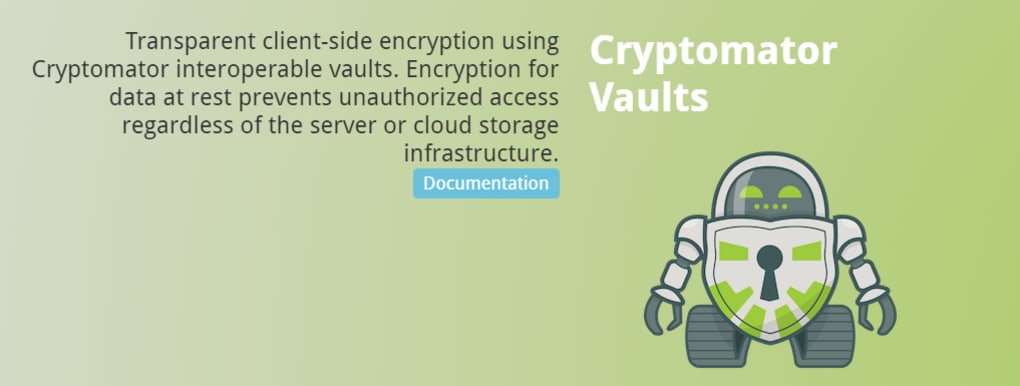
- On‑the‑fly encryption with TLS/SSL and optional client‑side encryption for added data protection.
- Credential management via system keychain, password vaults, and support for SSH keys and OAuth tokens.
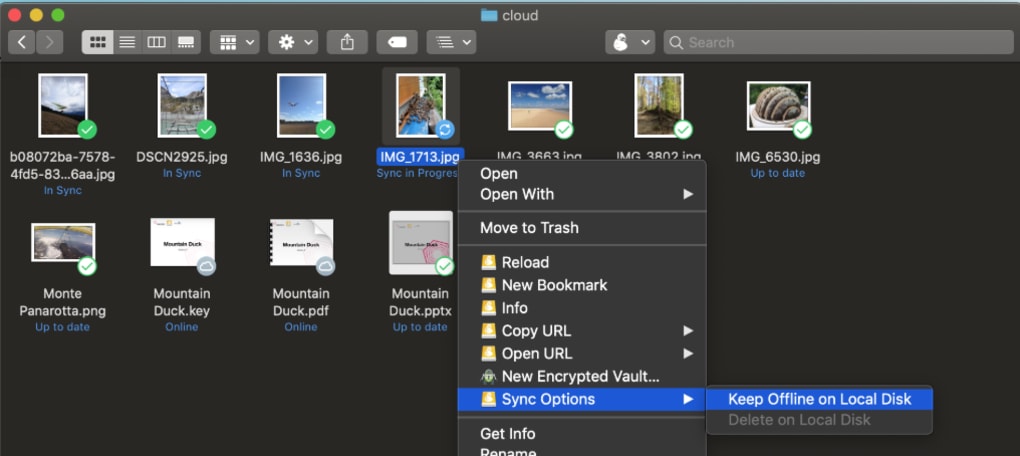
- Selective sync: view and edit files without downloading entire directories, saving bandwidth and local disk space.
- Version control integration for services that support it, allowing you to revert changes directly from the file manager.
- Customizable mount options, including read‑only mode, cache size adjustments, and background transfer throttling.
- Menu‑bar (macOS) or system‑tray (Windows) quick‑mount menu for instant access to frequently used volumes.
Beyond these technical capabilities, Mountain Duck’s user experience shines through its clean, distraction‑free interface. Once a remote location is configured, mounting it is as simple as selecting the drive letter (on Windows) or clicking the volume name (on macOS). The application automatically reconnects after system restarts, preserving your workflow continuity. For power users, command‑line tools are also available, enabling scripted mounts and integration with automation pipelines.
In practice, this means you can open a Photoshop file stored in an S3 bucket, edit it, and save it back without ever leaving Photoshop or manually uploading the result. Developers can compile code directly from an SFTP server, and system administrators can manage logs stored in Azure Blob Storage with their favorite text editor. The flexibility and security of Mountain Duck make it a compelling choice for any scenario where remote file access is a daily necessity.
Installation & Usage Guide: Getting Started Quickly
Step‑by‑Step Installation
Mountain Duck offers native installers for Windows, macOS, and several Linux distributions. The download process is straightforward:
- Visit the official Mountain Duck website and click the “Download” button for your operating system.
- Run the installer (MSI for Windows, PKG for macOS, or DEB/RPM for Linux). Follow the on‑screen prompts to accept the license agreement and choose the installation directory.
- After installation, launch Mountain Duck. On first launch, you’ll be prompted to create a master password that secures stored credentials in your system’s keychain.
The application then adds an icon to the system tray (Windows) or menu bar (macOS). Clicking this icon opens the “New Bookmark” wizard, where you can define a remote connection.
Configuring a Remote Bookmark
To mount a cloud storage location:
- Select the protocol you wish to use (e.g., S3, SFTP, WebDAV).
- Enter the server address, port number, and authentication details (username/password, SSH key, or OAuth token).
- Choose a friendly name for the bookmark and optionally set a default mount point (drive letter on Windows, mount path on macOS/Linux).
- Enable any advanced options you need, such as “Read‑Only” mode or “Cache files locally for faster access.”
- Click “Connect” to test the connection. If successful, click “Save” to store the bookmark.
Once saved, the bookmark appears in the quick‑mount menu. Selecting it mounts the remote storage instantly, and you’ll see a new drive appear in Explorer or Finder. From there, you can open, edit, move, or delete files just like any local file.
Best Practices for Daily Use
While Mountain Duck works out‑of‑the‑box, a few best practices can enhance performance and security:
- Use encrypted connections: Always enable TLS/SSL for FTP/SFTP and ensure cloud services are accessed via HTTPS.
- Leverage caching wisely: For large files accessed frequently, enable local caching to reduce latency, but monitor cache size to avoid disk bloat.
- Keep credentials separate: Store SSH keys in a dedicated folder with strict permissions, and avoid reusing passwords across services.
- Regularly update Mountain Duck: The development team releases security patches and protocol improvements frequently.
- Test mount stability: In mission‑critical environments, run a quick read/write test after mounting to ensure the connection is stable.
Following these guidelines ensures that you benefit from the seamless experience Mountain Duck promises while maintaining the integrity and speed of your workflow.
Compatibility, Pros & Cons, and Real‑World Evaluation
Supported Operating Systems
Mountain Duck is designed for cross‑platform consistency. Official support includes:
- Windows 10, Windows 11 (64‑bit)
- macOS 10.15 (Catalina) and later (including Apple Silicon)
- Popular Linux distributions such as Ubuntu 20.04+, Debian, Fedora, and openSUSE (via .deb or .rpm packages)
Each version integrates with the native file manager of the OS, ensuring that mounted volumes behave like any local drive. On Linux, the tool utilizes FUSE (Filesystem in Userspace) to present remote mounts, offering similar performance to native mounts.
Pros and Cons
- Pros:
- Broad protocol support eliminates the need for multiple client applications.
- Native integration provides a familiar drag‑and‑drop experience.
- Strong security with TLS/SSL, SSH keys, and optional client‑side encryption.
- Lightweight UI that stays out of the way while offering powerful mount options.
- Automatic reconnect on system restart saves time.
- Cross‑platform consistency ensures teams on different OSes have the same experience.
- Cons:
- License is paid ($39 per user); no free tier beyond a 14‑day trial.
- Advanced features like versioning may require the underlying cloud service to support them.
- Initial configuration can be intimidating for non‑technical users.
- Large files may still experience latency depending on network speed, despite caching.
Real‑World Evaluation
In real‑world scenarios, Mountain Duck shines when teams need to collaborate on assets stored in remote buckets without the overhead of synchronizing entire folders. For example, a design agency using Adobe Creative Cloud can mount their Amazon S3 archive and edit Photoshop files directly, with changes saved instantly to the cloud. Developers working on a remote server via SFTP appreciate the ability to open source files in their preferred IDE without manually uploading or downloading files.
The performance is generally smooth for most file types, though very large video files (several gigabytes) can benefit from enabling local caching. Users have reported that the mount process completes within seconds for most services, and the UI remains responsive even when browsing directories with thousands of objects.
Overall, the balance of security, ease of use, and extensive protocol support makes Mountain Duck a solid investment for professionals who treat remote storage as a core component of their daily workflow.
Frequently Asked Questions
-
Can I use Mountain Duck for free?
Mountain Duck offers a 14‑day free trial with full feature access. After the trial, a perpetual license ($39 per user) is required for continued use. There is no permanent free tier.
-
Does Mountain Duck support multi‑factor authentication?
Yes. For services that provide MFA (e.g., AWS S3 with temporary credentials, Azure AD, or SFTP with OTP), Mountain Duck can store and use the generated tokens during the mounting process.
-
How does caching work, and can I control its size?
Mountain Duck offers optional local caching to speed up repeated reads of large files. The cache size can be set in the advanced mount options, allowing you to balance performance with available disk space.
-
Is there a command‑line interface for automated mounts?
Yes. Mountain Duck includes a CLI tool (mountainduck) that lets you script mounts, unmounts, and credential updates—ideal for CI/CD pipelines or scheduled backups.
-
Can I mount multiple accounts of the same service simultaneously?
Absolutely. Each bookmark is independent, so you can mount several Amazon S3 buckets, multiple FTP servers, or different Azure storage accounts at the same time, each appearing as its own drive.
Conclusion & Call to Action
Mountain Duck delivers on its promise to make remote storage feel like a local drive, combining robust security, extensive protocol support, and a clean user experience. While the upfront cost may deter occasional users, professionals who regularly interact with cloud services will quickly recoup the investment through time saved and reduced complexity. The ability to edit files in‑place, leverage caching for large assets, and maintain a unified mounting workflow across Windows, macOS, and Linux sets Mountain Duck apart from traditional sync clients.
If you’re ready to streamline your cloud file management, download the free trial today, set up a bookmark for your most used service, and experience the seamless integration that only a native mounting solution can provide. For teams, purchasing a license unlocks centralized credential handling and ensures every member works with the same secure, up‑to‑date data.
Take the next step: Download Mountain Duck now and transform the way you access remote files forever.







